Only an Administrator can create a Gallery, and a Gallery Page that appears under either the Photography Group or Practical Photography Tabs in the Menu Bar. They have to login using an administrator userid and password. This should normally be done as soon as is practicable following a Show’n’Tell session
Step 1
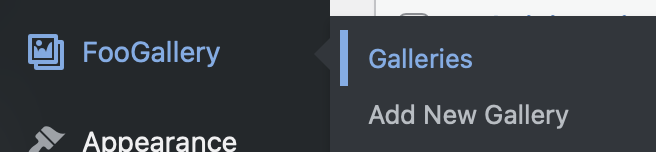
Click on Galleries and select the old gallery, then …
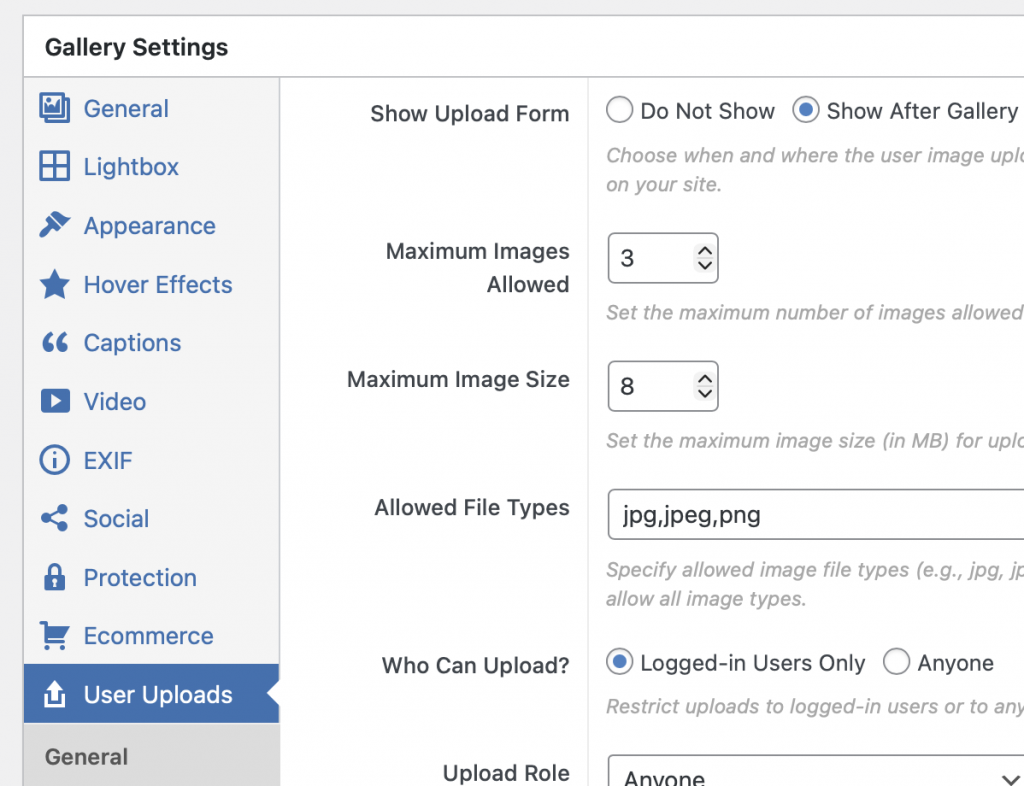
In User Uploads change Show After Gallery to Do Not Show – this will prevent any further images being added to that Gallery page, and the User Upload Form will disappear from the Gallery Page.
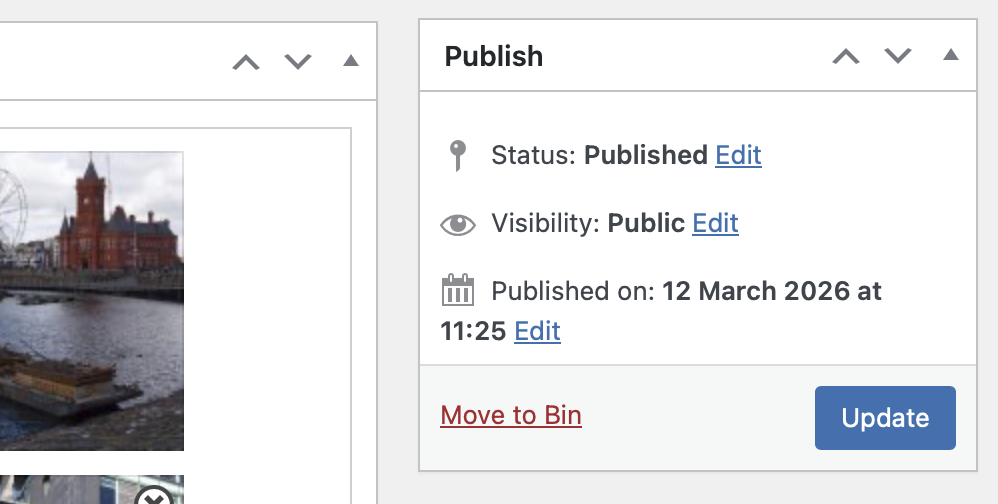
Click on Update in the Galleries Sidebar Menu …
Step 2
From the FooGallery Tab, select Add New Gallery
I’ve created a Default Gallery and that is what should be loaded at this stage.
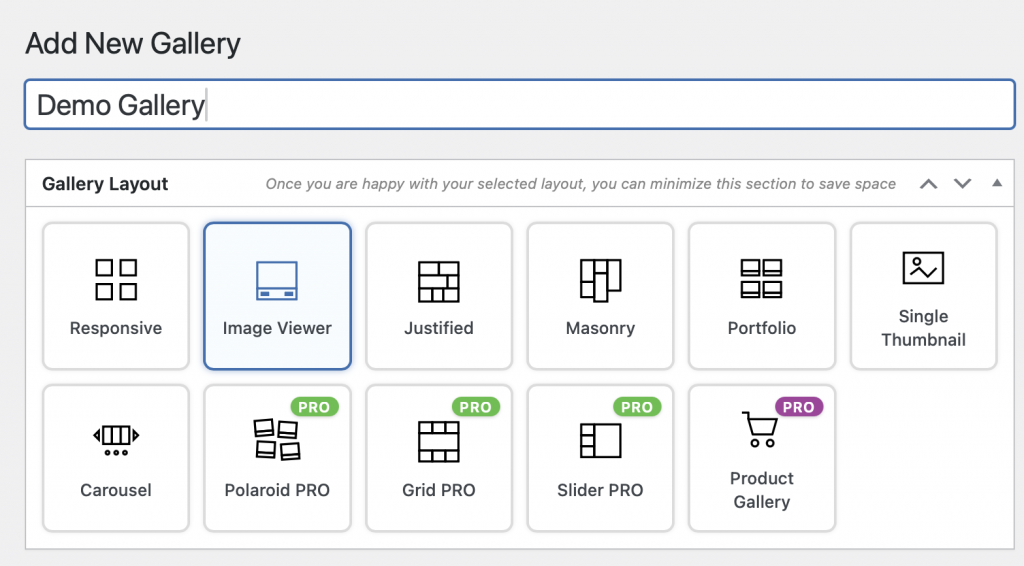
Give it a Title [eg Demo Gallery]
Click on the Layout you want [suggestion to use Image Viewer]
Step 3
Go to User Uploads and ensure that Show After Gallery is selected
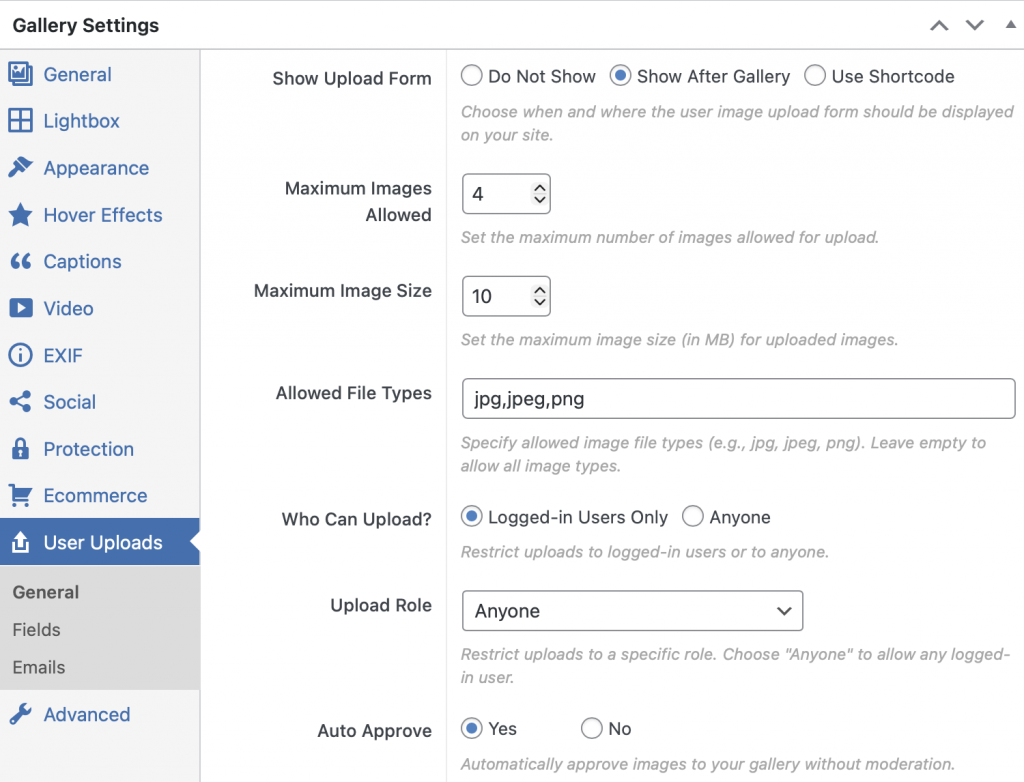
When finished Select Publish
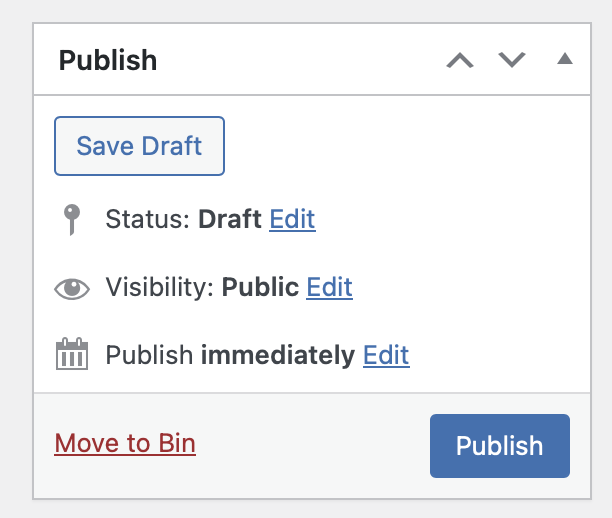
Then Create Gallery Page – the Gallery Page will be created …
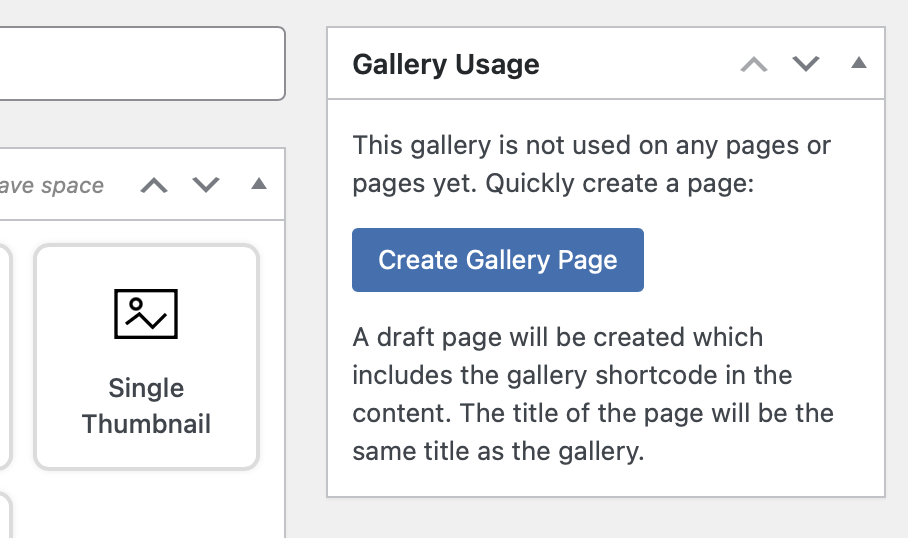
Step 4
Return to the Dashboard
The Gallery Page will appear as a Draft Page which can be seen from the Pages Tab in the Sidebar Menu
Click on Quick Edit
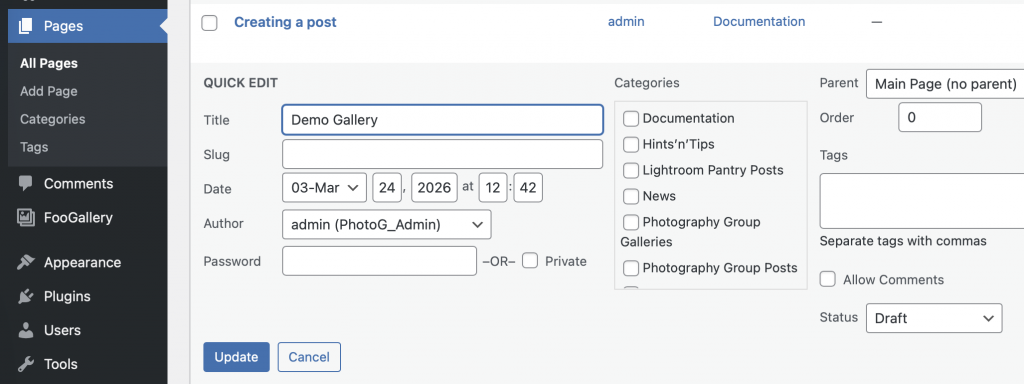
Select the correct Category [Photography Group Galleries or Practical Photography Galleries], and change the Status from Draft to Published. Click on Update.
Options
NB. If you want to change the Default at any time (which will then be applied to all new galleries), you should remember to edit the Default Gallery as well so that it will be the same as the New Gallery settings.
====
The Gallery will be created with a Default Featured Image. This can be changed by selecting Plugins in the Sidebar Menu, and then Installed Plugins, activating Default featured image …
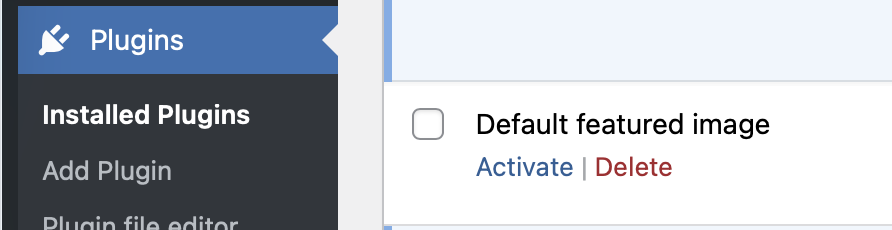
… and then in Settings.
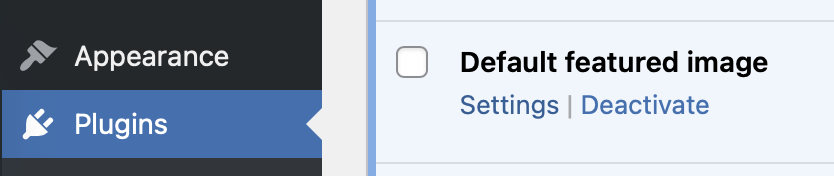
From that page you can Select a Default Featured Image from the Media Library, or Upload one from your Desktop.
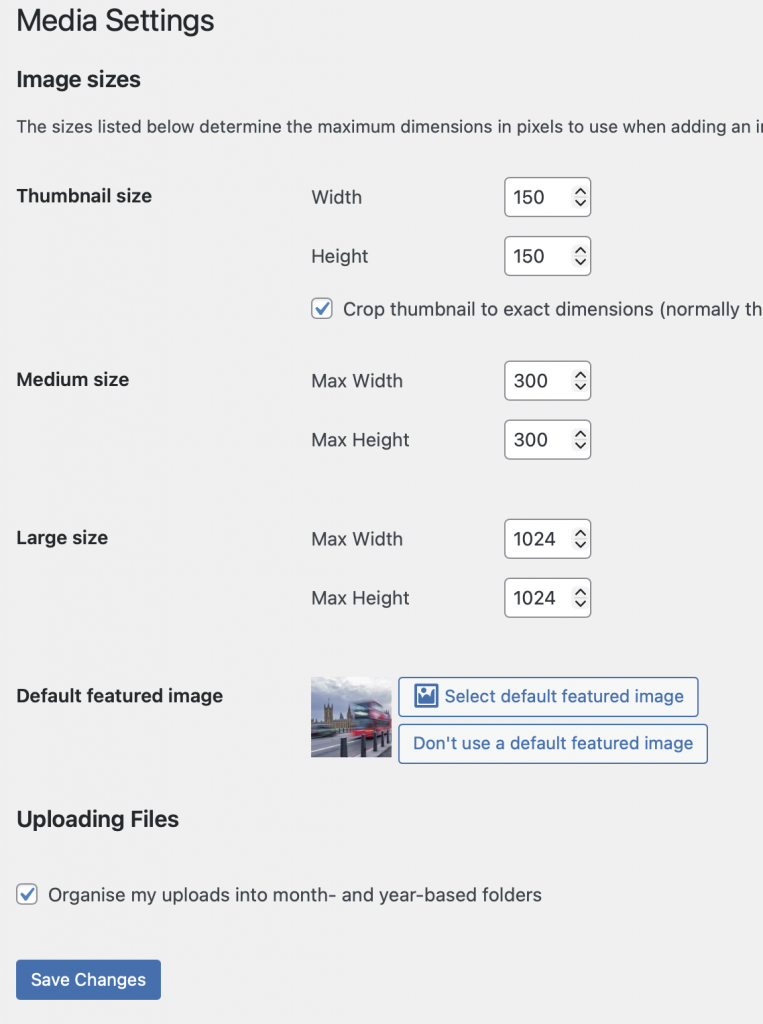
NB This Featured Image will then always appear with any Gallery created, until it is changed. When it is changed, the changed (ie new image) will be applied to all gallery posts. I prefer to Activate and Deactivate the Plugin, rather than the option to Select / Don’t use.
====
In Gallery Settings
Captions – suggest using On Hover, rather than Always Visible
====
There will be more as you get used to the site, I’m sure.