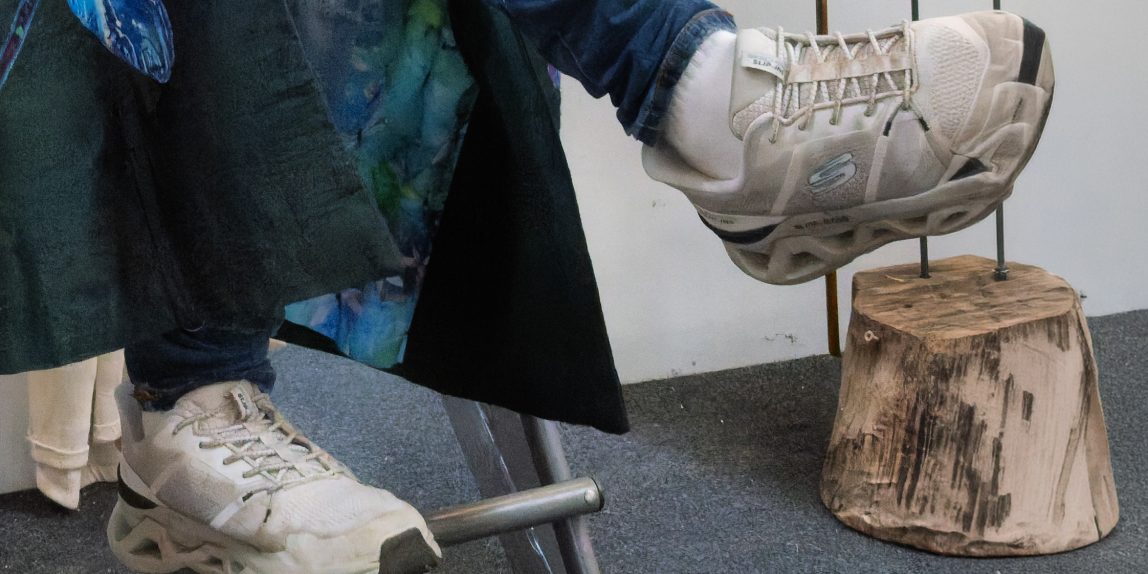
I’ve got myself diverted from the task of editing the images I took at RHS Malvern Autumn Show after finding that I’d not framed an image correctly. I was using my small travel camera, the Sony RX1000 VA, and not using the eyepiece, so it was easy to miss the fact that I hadn’t captured this great guy’s toe correctly.

I’d noticed that Generative Expand had been introduced into Lightroom Desktop, but not into Classic, but was available in Photoshop and therefore in Adobe Camera RAW Technology Preview, so I decided to see if I could mend the image.

I think the Generative Expand worked quite well, not exactly right but good enough for me. I was able to create the 1×1 image I thought would work best. The only other edit was to select an Adaptive Profile.
I thought you might be interested to see the script I followed after asking Perplexity how to do the task, so here it is …
One-image workflow on your Mac
- In Lightroom Classic’s Develop module, finish editing the DxO PureRAW DNG, including applying Adaptive Color if wanted.
- Return to the Library module and keep that DNG selected.
- Choose Metadata → Save Metadata to File, or press ⌘S. This writes Classic’s current settings out so Camera Raw can read them.lightroomqueen+1
- Right-click the image in Classic and choose Show in Finder. In Finder, right-click that DNG and choose Open With → Adobe Photoshop. Because it is a DNG, it should open first in the Camera Raw window, not as a rendered Photoshop document. Alternatively, select the file in Adobe Bridge and choose File → Open in Camera Raw.lightroomqueen+1
- In Camera Raw, select the Crop tool and tick Enable Expand. Drag a crop edge beyond the photograph’s existing boundary, then click Generate. Work on one edge at a time for the best chance of a convincing result.helpx.adobe
- Review the three variations using the arrows. Click Generate again if needed; when you like one, click Keep.helpx.adobe
- Click Done, not Open, to save the Camera Raw work without sending a rendered copy into Photoshop. If Photoshop opens afterwards, you can close it without saving a new document.lightroomqueen+1
- Back in Lightroom Classic, select the same DNG in Library and choose Metadata → Read Metadata from File. Check that the expanded result appears.lightroomqueen+1
Important: “Do not make further edits in Classic between saving and reading the metadata, because Read Metadata from File will replace Classic’s settings for that image with those saved to the DNG.